The best options for music, navigation and more.
Manu Padilla/Shutterstock
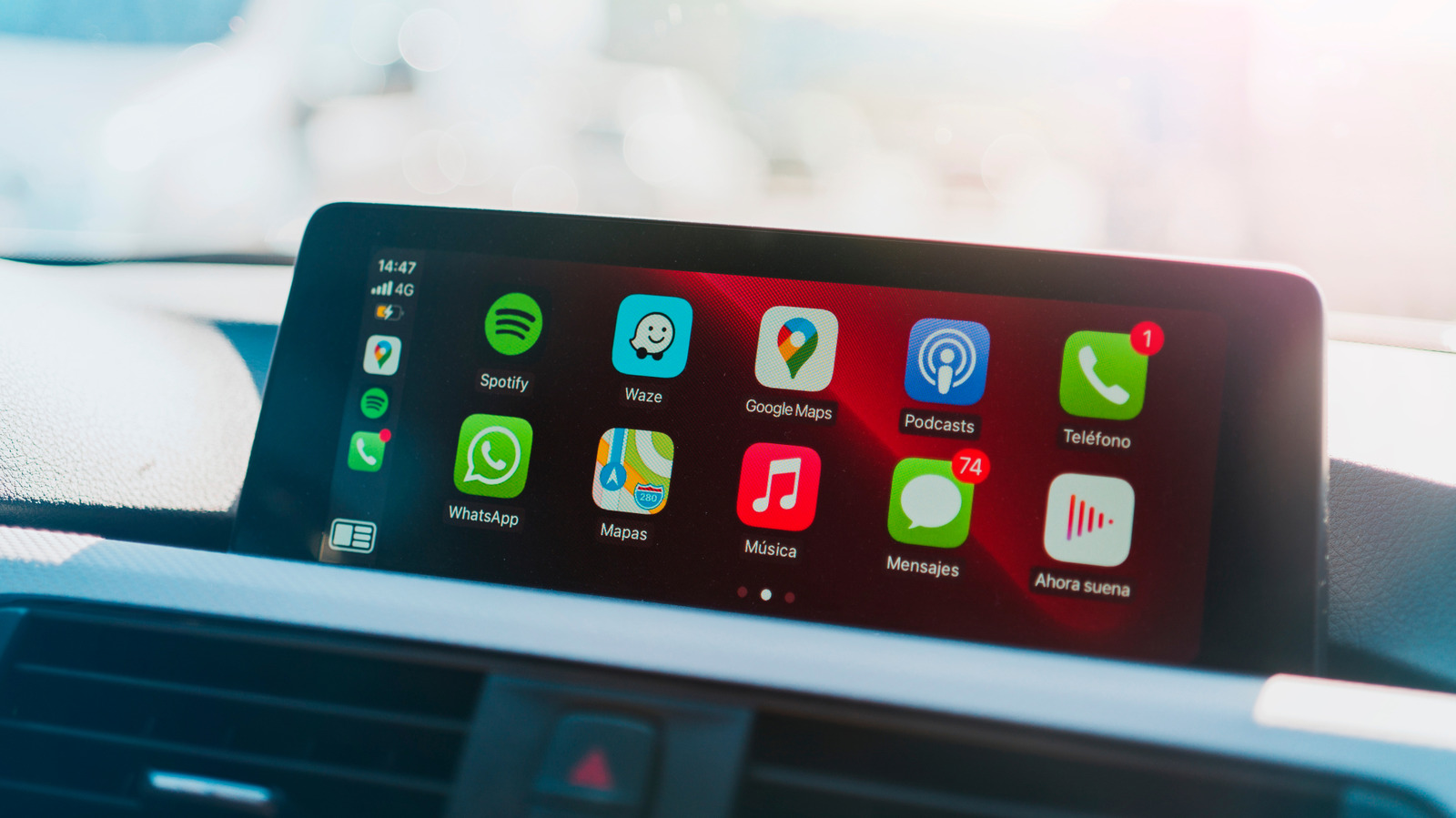
CarPlay has gone from being a “nice to have” feature for consumers, to something they actively seek out when looking for new vehicles. And that makes sense: If you’ve got a large infotainment screen in your car, why deal with mounting your phone like the old days? CarPlay (along with Android Auto) basically projects functionality from your phone, similar to adding a second monitor to a PC or laptop. CarPlay apps are designed to be easier to use from your driver’s seat, with larger interfaces and clearer menus than the iOS apps they’re based on. (Though you should still avoid interacting with them while driving.)
It’s worth noting that CarPlay looks and feels different across various cars and manufacturers. Older vehicles typically require a wired connection, whereas newer models can connect wirelessly. (There are a variety of accessories that can also let you bring wireless functionality to wired CarPlay models, like the CarlinKit.) Some car makers restrict CarPlay apps to small windows within their infotainment systems, while others let it take over entire screens. And if you’re the lucky owner of something compatible with CarPlay Ultra, which at this point only includes newer Aston Martins, then you’ll get an expensive CarPlay view across your driver and infotainment displays.
After using CarPlay for more than five years and testing dozens of apps specifically for this story, I’ve narrowed down the list of CarPlay apps you really need to use.
Google Maps
Google Maps was one of the most useful CarPlay apps when they first arrived, and it remains one of the best navigation options around. The Google Maps CarPlay app lets you easily set destinations using voice commands, report and respond to events on the road (like police presence and debris), and see the traffic flow of your route. The downsides? It’s far more annoying to preview what’s coming up in your route, compared to just swiping around a phone, and the app sometimes loses track of your location.
Apple Maps
Apple
Despite its inauspicious launch, Apple Maps has turned itself into a true Google Maps competitor over the years. With CarPlay, Apple Maps can also do a few things better, like giving you more conversation directions (I.e, “Turn right after the next light”), compared to Google Maps’ more stiff tone. If you’re wearing an Apple Watch, the Apple Maps app will also gently nudge you when it’s time to prepare for a turn or highway exit. Some cars can also display Apple’s navigation information in the driver display, which is less common with Google Maps.
Spotify
If you’re a heavy Spotify user, you’ll definitely want to use its CarPlay app. It lets you easily jump back into music and podcasts you’ve been listening to, find playlists and discover new recommendations. In many ways, its limited functionality is a more soothing way to use the music service, compared to its more chaotic desktop app. You can also integrate Spotify directly into Google Maps, though you’ll sacrifice a bit of navigation screen space to do so.
Apple Music
Even if you don’t subscribe to Apple Music, you’ll still have to rely on its app for songs you download directly to your phone. The Apple Music CarPlay app makes it easy to find everything in your library, and in my testing it also worked more reliably with Siri voice commands compared to Spotify. And of course, it also gives you instant access to curated Apple Radio channels, as well as playlists built specifically for you.
Pocket Casts
PocketCasts
Most major podcast apps support CarPlay by now, but I particularly like Pocket Cast’s collection of filters and easy show discovery. Pocket Cast also has a variety of features to help you listen to podcasts more efficiently, like the ability to trim silences and increase your playback speed. If you listen to shows across a few different devices, Pocket Casts will also instantly synchronize your progress. So you could conceivably start listening to an episode of This American Life on your computer and then finish it up on your commute.
Audible
If you’re into audiobooks, there’s a good chance you’ve amassed a large Audible library. The Audible CarPlay app lets you quickly jump back into your latest title and browse all of your audiobooks. You won’t be able to buy new books though — instead, you’ll have to whip out your iPhone and launch Safari to accomplish that. (You can thank Amazon’s disdain for paying Apple commissions for this bit of consumer unfriendliness.)
TuneIn
If you’re a live radio addict, TuneIn remains one of the best ways to listen to news, sports and music stations from around the world. The CarPlay app gives you instant access to TuneIn’s vast library, and you can also listen to most of it for free. (You can pay a bit more to get rid of many ads.) While live internet radio has been supplanted by streaming music and podcasts (which TuneIn also supports), you still can’t beat the sheer wonder of instantly playing a broadcast from the other side of the planet.
PlugShare
PlugShare
America’s EV infrastructure stinks, so it’s worth using the PlugShare app to keep track of all the EV chargers around you. The CarPlay app does just that, along with the ability to navigate to bookmarked locations and view planned trips. Its CarPlay view also prioritizes the best locations near you, so you don’t have to sift through low-rated charging locations. PlugShare relies on crowdsourced information, and in my experience it does a decent job of letting you know if certain chargers aren’t working. (You’ll have to use your iPhone if you want to report a broken charger, or leave a comment on a location.)
SpotHero
SpotHero is one of the best ways to find nearby parking, and its CarPlay app makes the service even more useful. In addition to just locating parking, you can use it to quickly rebook spots you’ve already been to, as well as display parking passes. With support for over 400 cities across the U.S. and Canada, SpotHero should make it easier to find parking during your next road trip (so long as you’re not heading to the boonies).